
- Research & Learning
- All Databases
- Find Magazine & Newspaper Articles
- Download eBooks, Audiobooks, and Music
- Mobile Library Apps
- Citing Sources
- About Databases
Follow us on
JavaScript disabled or chat unavailable.
Chat is unavailable right now. Need additional help? Contact Us.
|
OverDrive |
OneClickdigital |
Freegal
What would you like to download today?
What do I need?
OverDrive has a selection of eBooks available in a variety of formats including Kindle, Adobe® EPUB, Adobe PDF, Open EPUB, and Open PDF.
All you have to do is download an eBook to your device or your computer, and you can start reading!
How does it work?
- Download to your eReader
- Have a Barnes & Noble Nook, Sony Reader, Kobo, Pandigital, Literati or other eReader? You can download eBooks and then transfer them to your device. Learn how - download our four page handout or watch our slideshow.
One-time setup:
- Download and install Adobe Digital Editions. Shortcut to slideshow.
- Create an Adobe ID.
- Authorize your computer and device. Shortcut to slideshow.
Checking out and Downloading eBooks:
- Find, check out & download an EPUB book on your computer through OverDrive. Shortcut to slideshow.
- Connect the device to your computer with the cord.
- Transfer the eBook to your device. Shortcut to slideshow.
- Eject your device and enjoy reading!
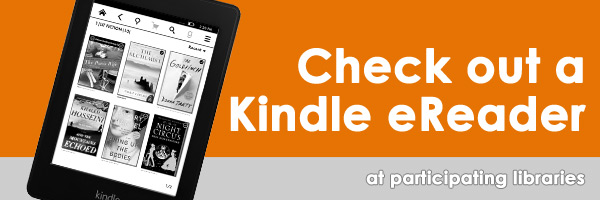
- Download to your Kindle or Kindle App
- You can read eBooks on your Kindle, or in your Kindle reading app (for iPhone, iPad and more), and they will be synced across platforms! Learn how - download our one page handout, watch our slide show, or learn how from OverDrive.
Note: Library eBooks published by Penguin publishing cannot be wirelessly downloaded to Kindles. In order to read this publisher's eBooks on a Kindle, you will need to download the eBook to a computer and transfer it using a USB cable. For instructions on transferring eBooks via USB, see our slideshow.
** NOTE: You cannot directly search, download, or check out Kindle format eBooks from Kindle devices or small screen mobile device such as an iPhone or Android phone. You need to check out your eBook on a PC or Mac computer and transfer/deliver to your device.
- Download directly to your mobile device with the OverDrive Media Console
- The OverDrive Media Consule app lets you download EPUB eBooks to your iPad, iPhone, iPod Touch, Android Phone or Tablet, and Blackberry. Learn how - download our one page handout, or visit OverDrive.
- Download to your Windows/PC or Mac Computer
- You can read eBooks on your computer as well. Learn how on your PC or Mac.
Need help?
Returning eBooks
If you check Kindle format eBooks out, you can return them early when you are finished reading them. Learn how with our tutorial.
What do I need?
OverDrive has a selection of audiobooks available in MP3 and WMA formats.
Just download the audiobook to your computer and transfer it to your device using the OverDrive Media Console, or you can download directly to a mobile device using an OverDrive App!
Check to make sure your device is in the list of compatible devices.
How does it work?
- Download to Windows/PC (and transfer)
- You can download both MP3 and WMA files to your PC, and transfer them to your player if you wish. Learn more.
- Remember to check if your device is compatible.
- Download to your mobile device
- The OverDrive Media Consule lets you download MP3 audiobooks to your iPad, iPhone, iPod Touch, Android Phone or Tablet, and Blackberry. Get the app and learn how (1 page pdf).
- Download to your Mac computer (and transfer)
- You can download MP3 audiobooks on your Mac computer, and then transfer them to your Apple player. Learn how.
Need help?
Audiobooks from OneClickdigital can be downloaded to your computer, and then transferred to a portable device. iPod, iPad, and iPhone users can download directly to their device using the OneClickdigital App after creating an OneClickdigital account.
How does it work?
- Sign up for an OneClickdigital account. Learn how: read a one page document or watch a video.
- Get a OneClickdigital Media Manager for PC or Mac, or download the OneClickdigital App to your iPhone, iPad, or iPod Touch.
- Find a book, check it out, and download it.
- Return books early using the OneClickdigital Media Manager.
- Download to Windows PC (and transfer)
- Download the OneClickdigital Media Manager for PC. Find an audiobook, check it out, and download it. If you use Windows Media Player, the audiobook will transfer to your supported device. If you use iTunes, the audiobook will transfer to your Apple device.
- Download to Mac (and transfer)
- Download the OneClickdigital Media Manager for Mac from the Mac App Store. Find an audiobook, check it out, and download it. The audiobook will transfer to your Apple device via iTunes.
- Download directly to an Apple device - OneClickdigital Mobile App
- iPhone, iPad, and iPod Touch users can download the OneClickdigital App from the Apple Store. You will need to create an OneClickdigital account on a computer before using the App.
Need Help?
- Click on the "Help" tab in OneClickdigital. You will find video tutorials, help on devices, and FAQs.
- Contact OneClickdigital's support team.
- Contact us

Find new music or old favorites, and download 3 DRM-free songs per week with your library card.
How does it work?
- Log in with your library card and find a song you would like. Click Download Now and save the file to your computer.
- Listen to the song preview to find what you want to download.
- Once the song is on your computer, you can put it on any MP3 player or listen to it with any media player. There is no Digital Rights Management attached to the file.
- After you have downloaded 3 songs, return the following week, beginning Monday, to get three more.
Need help?
- Read Freegal's FAQ by logging into Freegal first, and then clicking on the "FAQ" link in the upper right hand corner.
- Contact us
|